

Nicole's tiny guide to publishing on Substack
Just a few tips and tricks, nothing too fancy

When I first published on Substack, I hit “publish” and waited for the internet to discover my brilliance, give me all the money and subscribe me like the genius I am. I discovered really fast that the internet did not care. Not because the writing was bad (it was), but because I’d also skipped every technical step that helps readers actually find the damn thing.
So here’s some of what I learned about the boring-but-essential tweaks that make your posts discoverable. Not better. Not original. But somewhat necessary if you want humans who aren’t already subscribed to stumble across your work. If I’m new to you, I’d also advise going a bit through my publication to get a sense of where I’m going with these settings. If you like a minimalistic style and don’t really care of socializing your published work, why bother?
That being said, this post will not consider your are a net new substacker, so I’m going from the premise you already have a publication, sections for your content, and have set up the basics, maybe even published some or lots of posts. If that’s not the case and you really are new at Substack, WELCOME! You just won yourself a skip to the bottom pass, where you’ll find the link to The Monster Setup Guide to Substack.
Some contents we’ll discuss:
The Image paradox: critical for discovery, optional for Email
Does a lack of image lead to skipping?
Where images matter (and where they don’t)
Best practices for Substack images
A quick word on Links
Social preview and image generation
Creating a .gif for the animated preview of the post
The SEO Title vs. Social Preview Title
The SEO Description: Your 160-Character Sales Pitch
Social Preview Title
Adding a Custom Social Preview Image (Without Including It in Your Post)
My one prompt for all the content
The Image paradox: critical for discovery, optional for Email
Substack started fundamentally as a text platform (let’s not go into the podcast/live and TV channels yet arghhhh). But it’s still a social platform and images play an outsized role in how readers discover and interact with your work, especially if those readers never see the posts in their inbox.
Using images isn’t about “decorating” your email. It’s about optimizing for the Substack ecosystem: Notes (Substack’s social feed), the mobile app (yuck), search/discovery, and social media shares.
Does a lack of image lead to skipping?
In the Substack App and Notes, readers browse visually. Here’s what that means:
Visual Competition: A post with a “Featured Image” (the first image in your post) takes up more vertical space on a screen than a text-only preview. This makes it physically harder for a scrolling reader to miss your post.
The “Unprofessional” Trap: Many readers report that a missing thumbnail makes a publication look generic or unfinished. High-quality text can overcome this, but a compelling image acts as a trust signal, proof that you’ve put effort into presentation.
The Exception: Some massively successful Substacks (like Letters from an American) use zero images. But these authors have pre-existing reputations and enormous audiences of nearly 3 mil. readers. For growing writers, an image is a vital tool to catch a stranger’s eye.
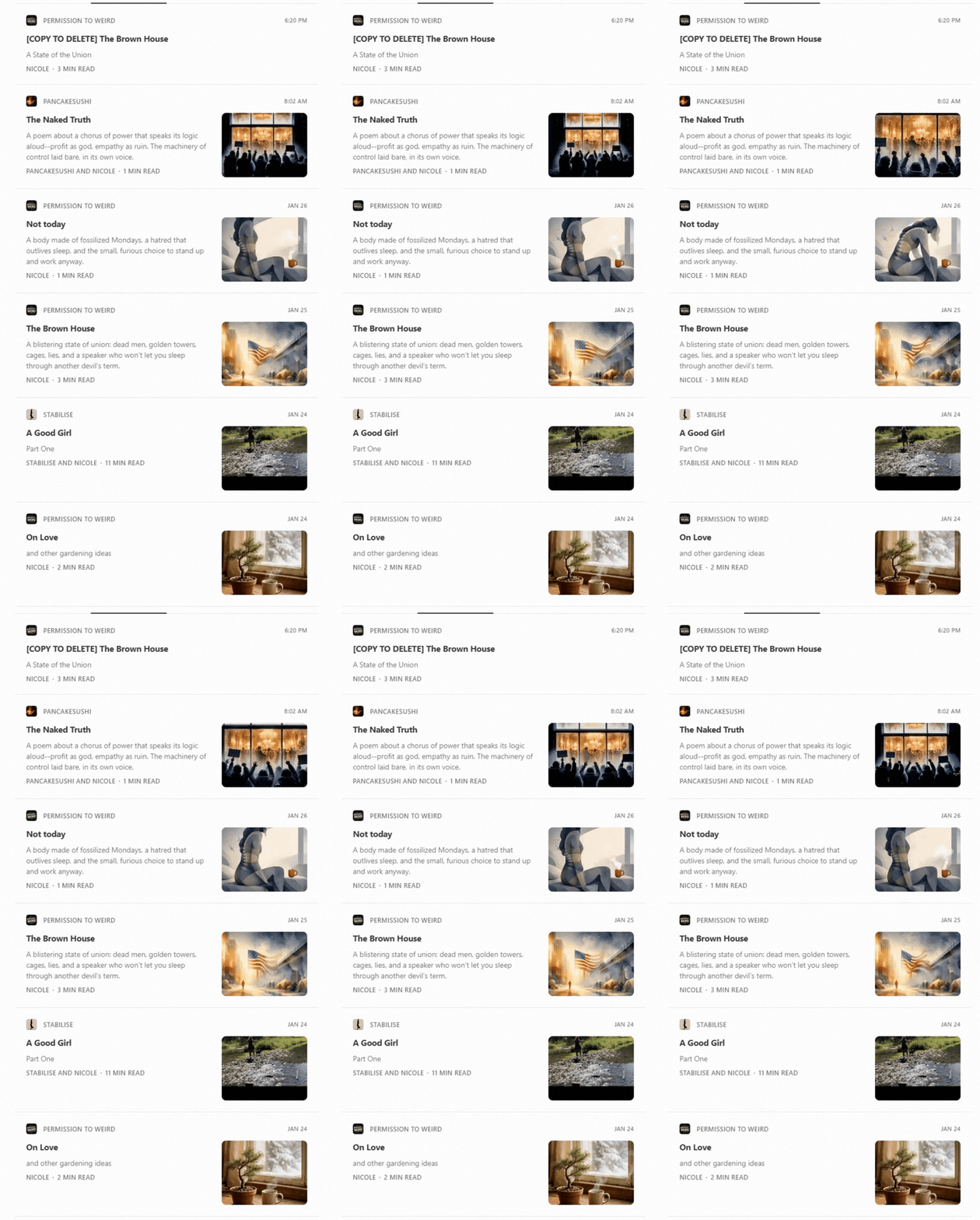
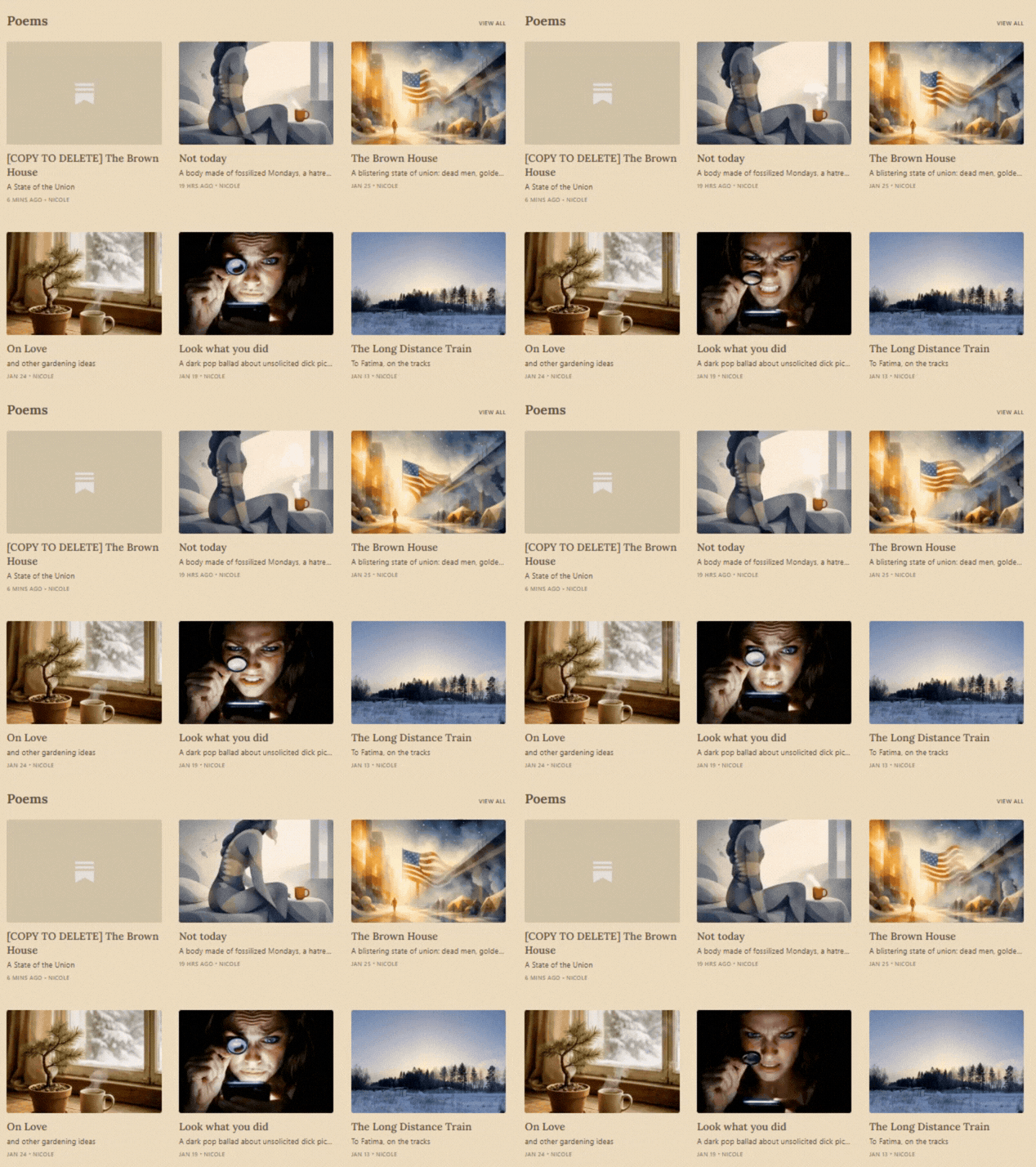
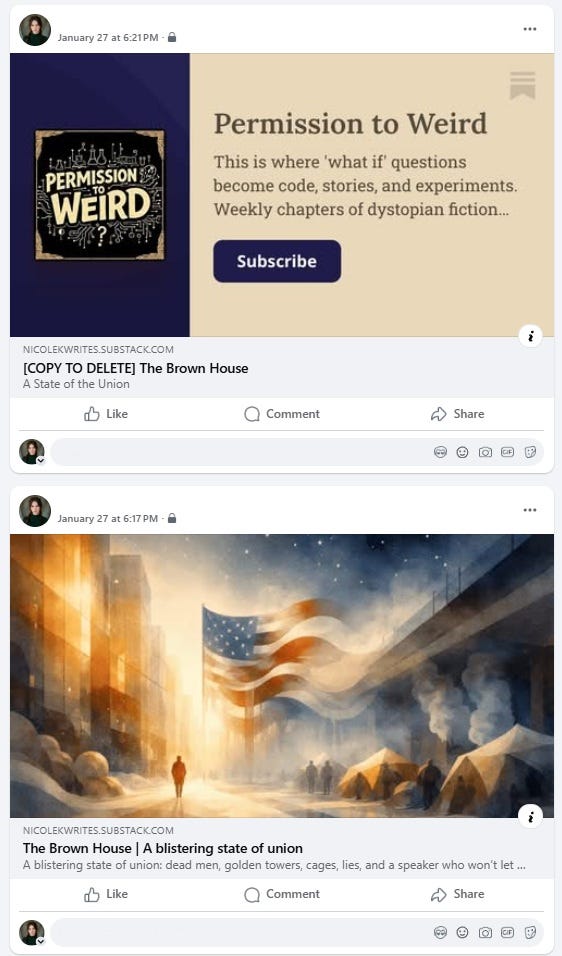
Where images matter (and where they don’t)
The importance of an image changes depending on where the reader encounters your post:
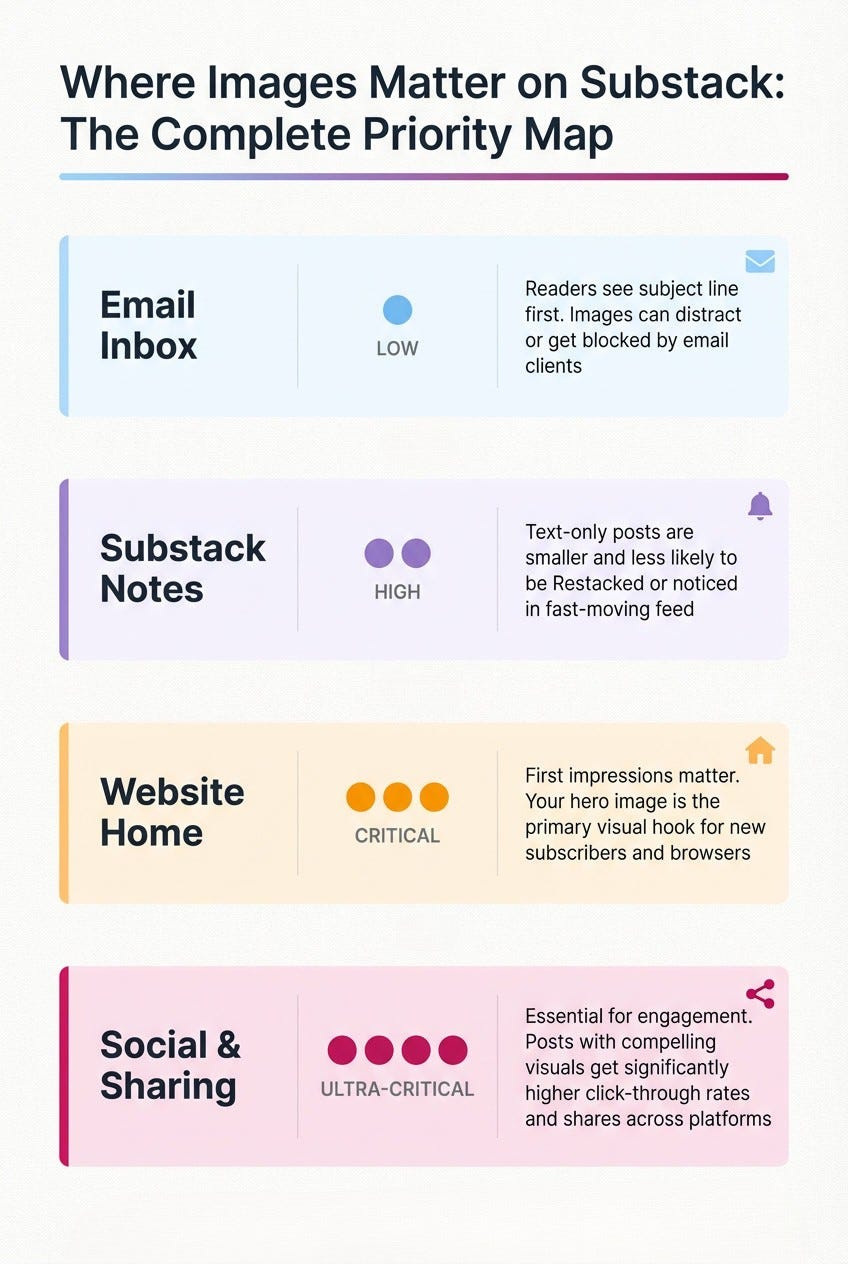
Best practices for Substack images
The first image is key: Substack automatically grabs the first image in your post to use as the thumbnail and social preview everywhere. Make sure it represents the “vibe” of the piece or prepare a second image for the social preview, even if not included in the post (we’ll come back to this).
Consistency is branding: Using a consistent visual style (all black-and-white photos, custom illustrations with a specific border, generated images with similar aesthetics) helps readers recognize your work instantly in a list. I don’t personally care for that since my writing is featuring a wide range of topics and I like to customize the style for every post, but a publication that consistently respects this will have a very pleasant and recognizable look, behold our friends Hush Halo page, 10/10:
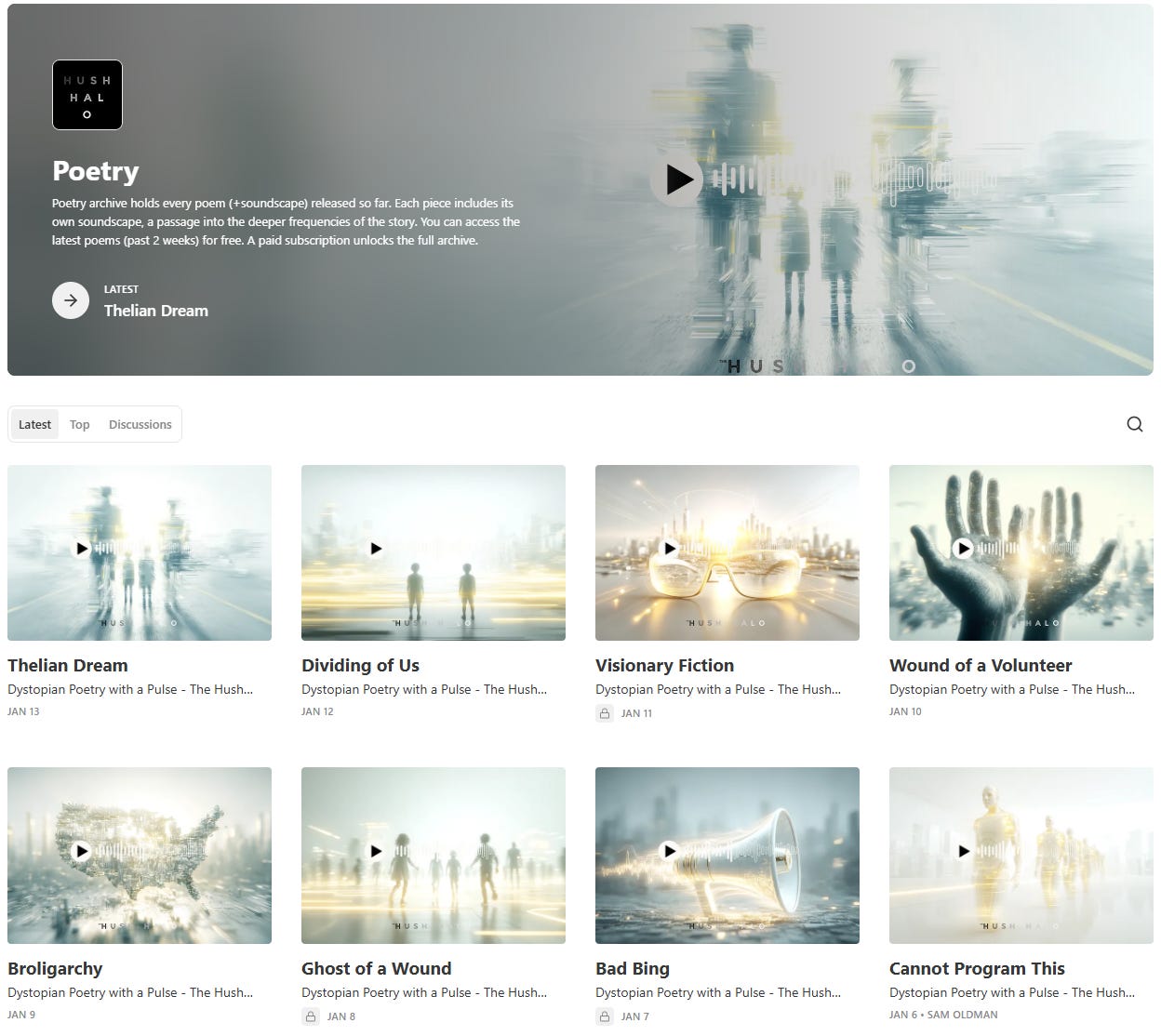
Don’t overdo the Email: To keep your email deliverability high, avoid using too many large images. One strong “featured” image near the top is usually enough. Also, know that you can send e-mails to your subscribers or cohorts of subscribers without ever publishing a post on the publication.
The Size trap: Substack marks limits on how big your post can be if you want to send it via email. Too much text, too many links, too many images, and you’ll hit a size limit that prevents the post from being emailed to your subscribers. You’ll get an error message, and you’ll have to strip things out.

If you’re planning to email your post (which you probably are), keep an eye on this. Substack is saying the limit is 102KB, which if you’re embedding multiple high-res images and linking to fifty different sources, you’re pushing it.
Will it really NOT send? There may be pleasant surprises, but I can tell you of one instance when it did not send. Not once, no one received it.

A quick word on Links:
Speaking of size limits, links contribute to post bloat in ways you might not expect. Substack offers two ways to add links:
Inline text links - These are lightweight. Highlighting text and adding a URL barely affects your post size.
Embed blocks - When you paste a URL on its own line, Substack automatically creates a preview card with an image, title, and description pulled from that page. These look nice, but they’re heavy. Each embed block adds significant data to your post because Substack is pulling and displaying external content (like images!).
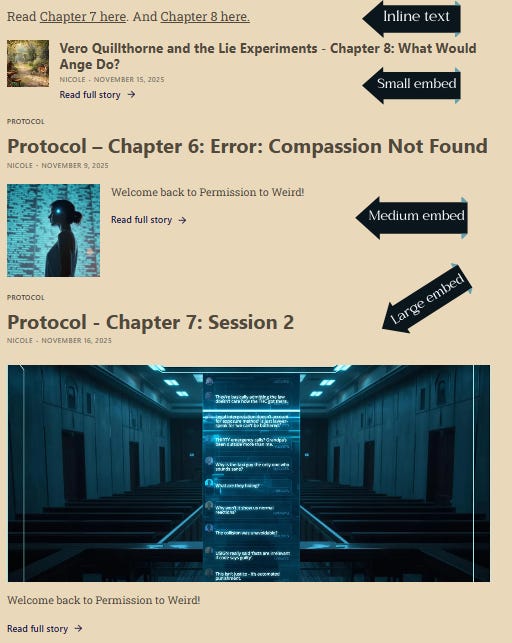
If you’re writing a roundup post or linking to multiple sources, use inline text links for most of them and save the embed blocks for one or two key resources you really want to highlight visually. Your email deliverability will thank you.
Also: every link you add (inline or embedded) is another potential point of failure in email clients. Some corporate email systems flag messages with too many outbound links as spam. If you’re linking to twenty different sources, consider whether you actually need all of them or if you’re just showing your research.
Social preview and image generation
For generating images, I use Leonardo.ai. It’s fast, the outputs are stylistically consistent, and I can feed it specific prompts that match my content’s tone. It generates a daily FREE 150 tokens that you can use to generate 4 images and one video animation with my settings.
The process takes just a few minutes:
Open Leonardo.ai
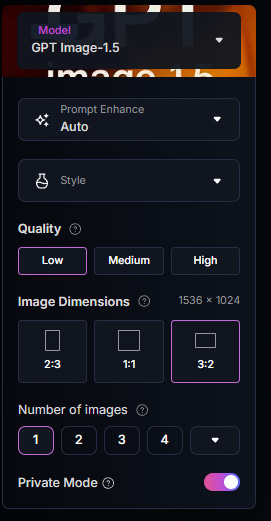
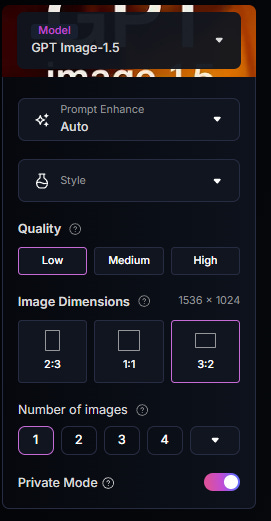
Set up your Image generation as in this screenshot, it should total 20 tokens:
Model = GPT Image 1.5 - performs best, there area cheaper models but they usually just waste your tokens
Quality = Low, you don’t need more for Substack, we’re not printing Tshirts here - YET
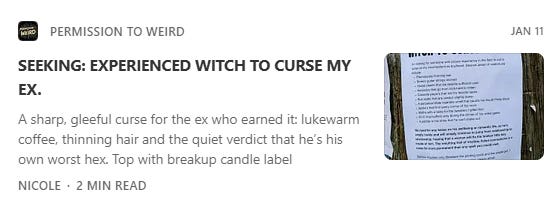
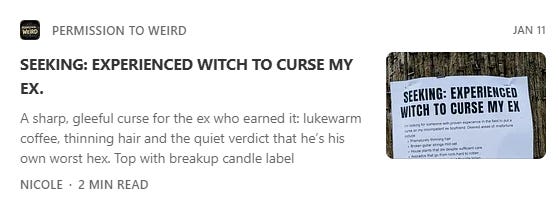
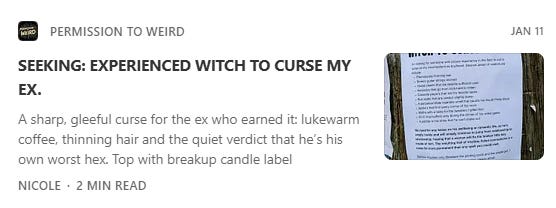
Dimensions =1536x1024 - landscape may seem weird since many people use the mobile app, but Substack will not render your entire image for the social preview and you’ll end up with this:
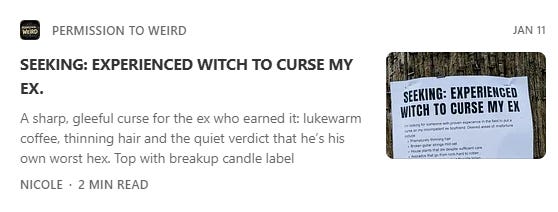
instead of this:
1 single image. Why spend tokens when you can click Generate again if needed.
Feed it a prompt that captures the post’s essence (i just go to Claude.ai and paste my post in there, then ask for a prompt for an image to do the article justice - you can ask for 3 different prompts, 5 different prompts, just to see which ideas you like.)
Generate one or a few images.
Download the one that feels right
Creating a .gif for the animated preview of the post
If I need a custom social preview with “video” aspect, I click on the image Leonardo generated and select the button “Create Video”
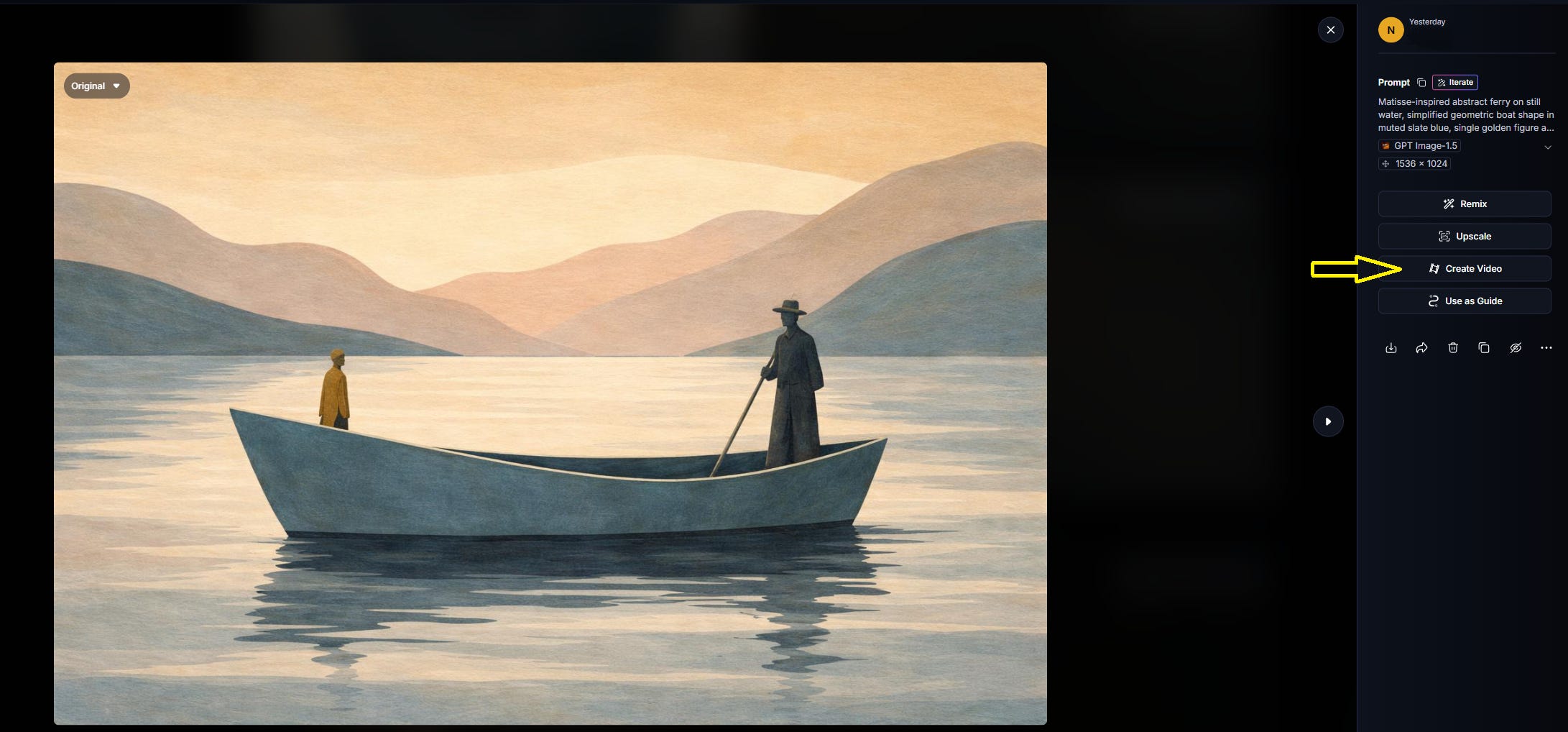
Give some basic prompt to the video prompt window or use Claude.ai or other LLMs to get a prompt to animate this particular image:
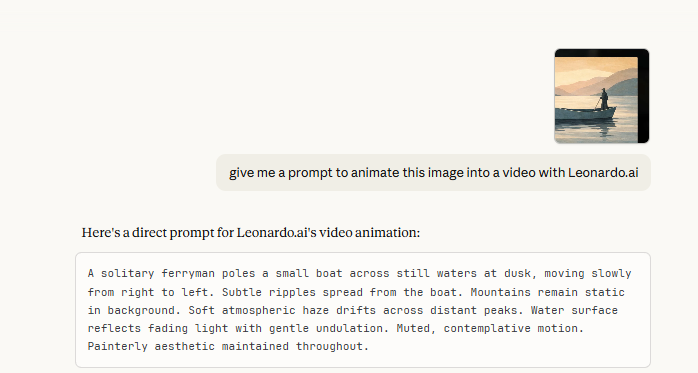
Never use Leonardo’s “improve prompt” option, which I have Xd here with red, it’s probably the crappiest thing on earth and will hallucinate over your prompt till you go out of tokens.

Make sure you use these settings for your video generation, they will create a small video with the same size as the seed image, costing you 70 tokens:
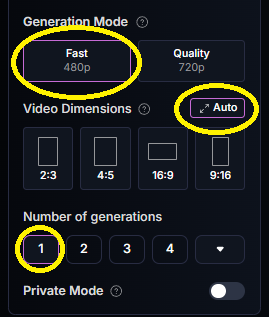
Once your video is generated and looks OKish, as in you can maybe use at least 2-3 seconds of the 5 generated, download it.
Ok, so now that you have an .mp4, you can turn it into a .gif.
You can use something like https://ezgif.com/video-to-gif, upload your video and download a gif, easy peasy.
Or if you need some cutting and slowing down the video before, use Canva.com.
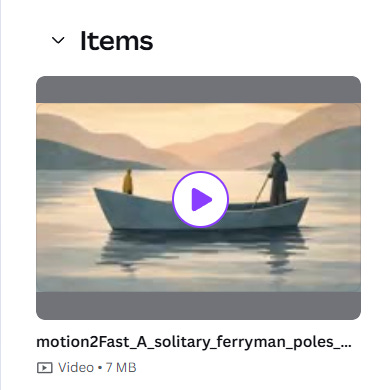
In Canva, from the Homepage, click on Upload:
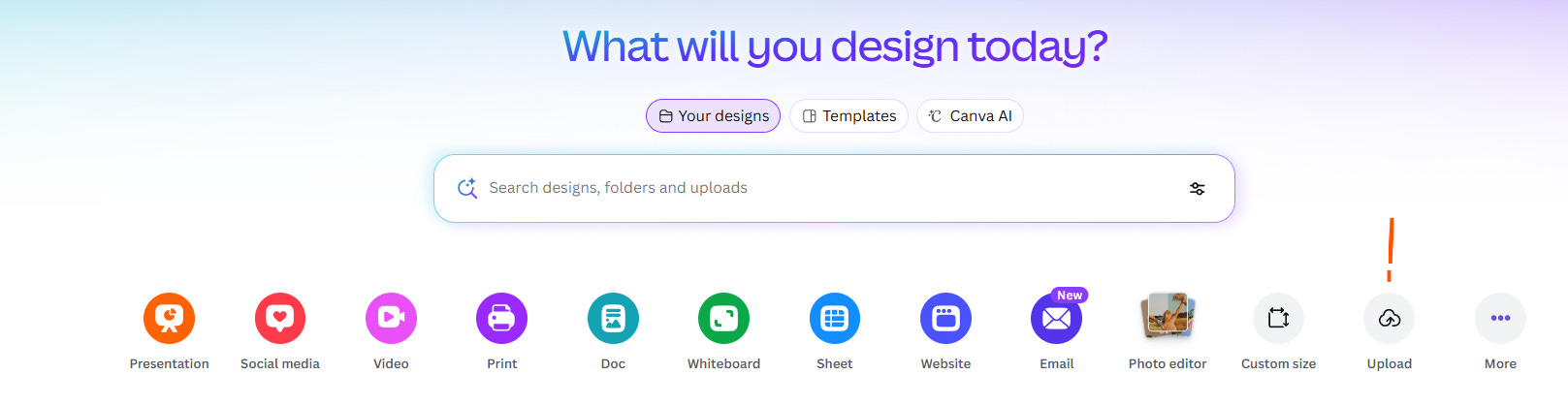
Upload your file and when it’s available, select it for Editing.
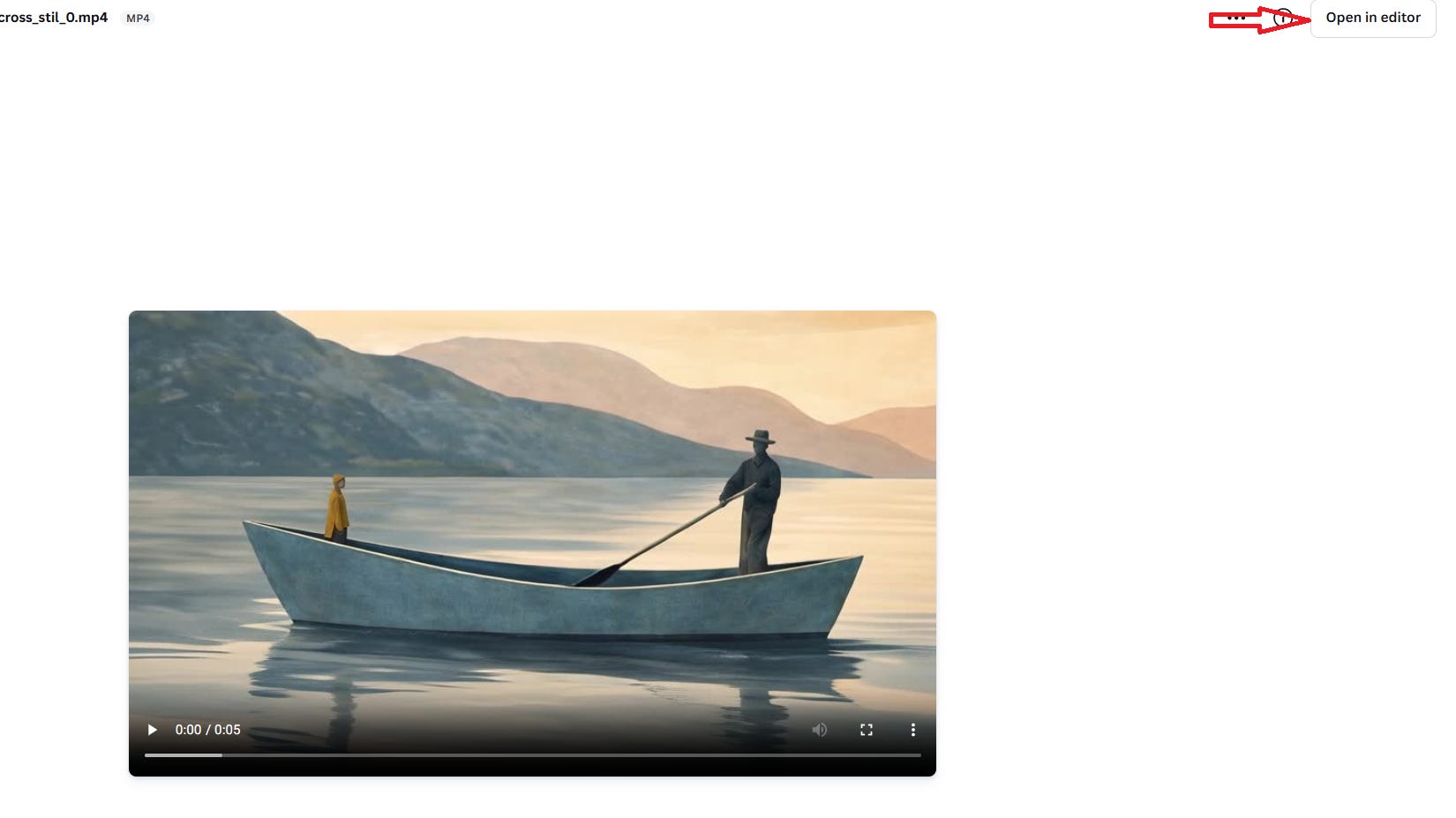
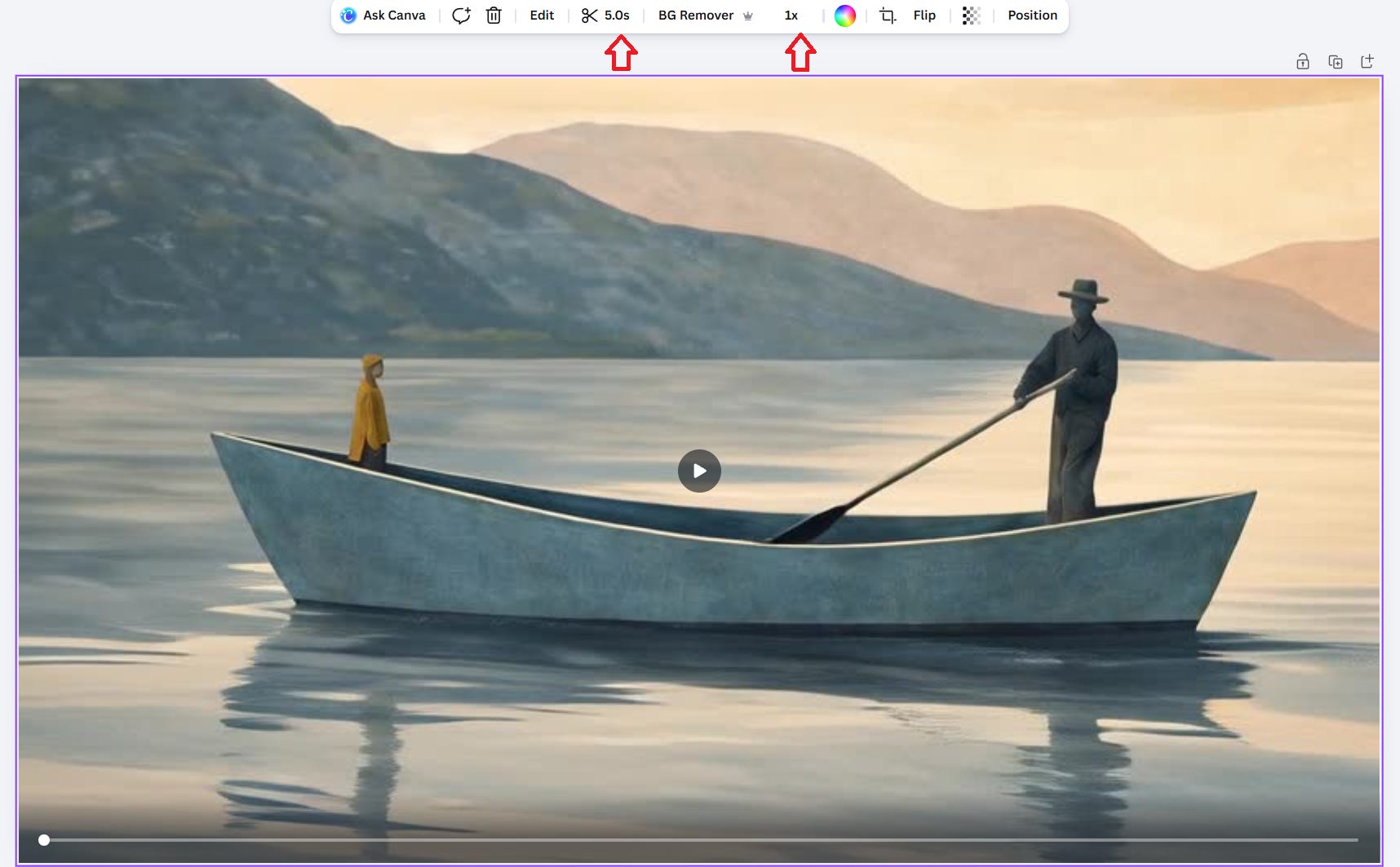
That will open your video in a new page. Once that happened, click inside your video and the edit buttons will appear above.
You’ll most likely only need to cut or slow your video, so use the buttons and hack it good:
When you’re ready, click on the Share button (1) in the upper right corner, then Download (2):
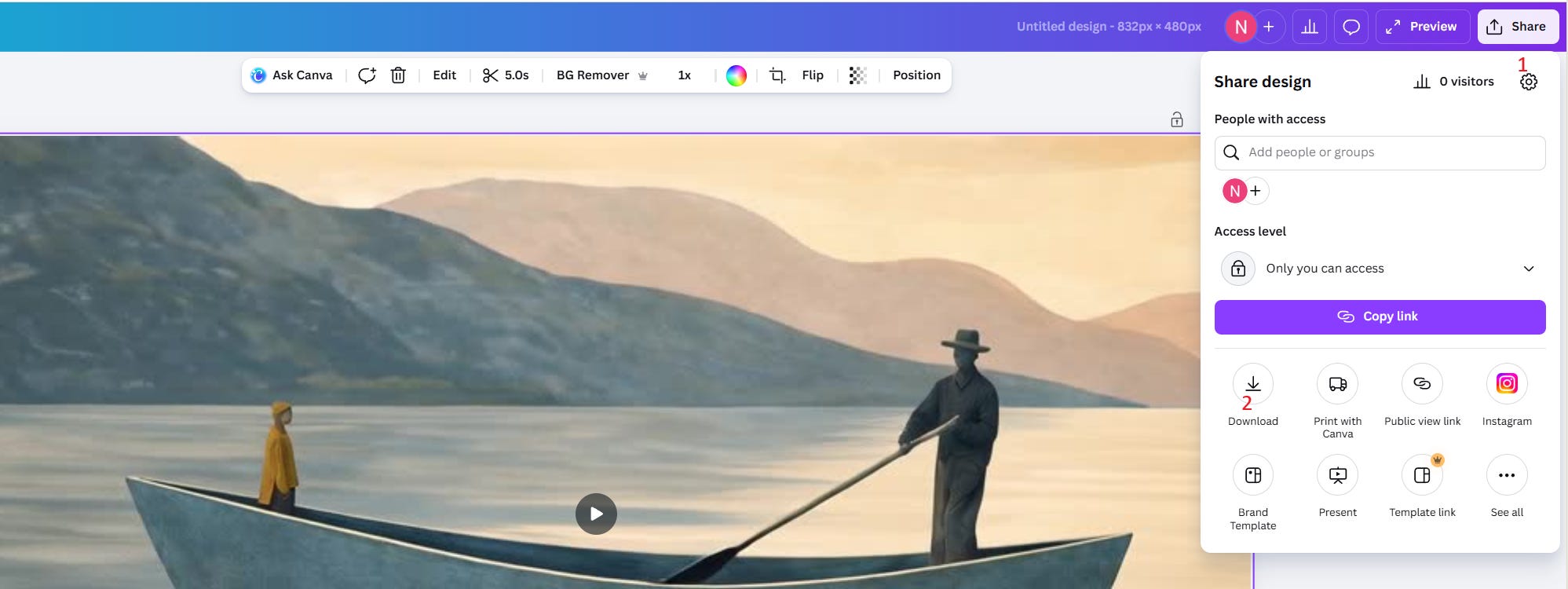
Select .gif in the picker instead of mp.4
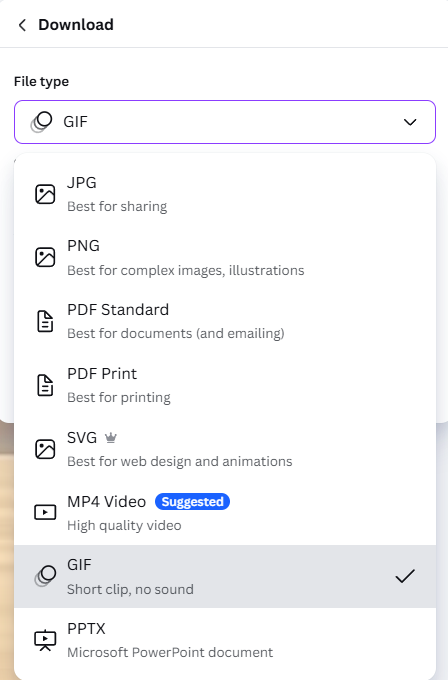
And now wait three hours. Kidding, 2-3 minutes.
The SEO Title vs. Social Preview Title
Here’s where things get interesting. Substack lets you customize three separate titles:
Your actual post title (what readers see in the posts and Feed list when they open the article)
Your SEO title (what Google sees but also what your browser bar and tab show)

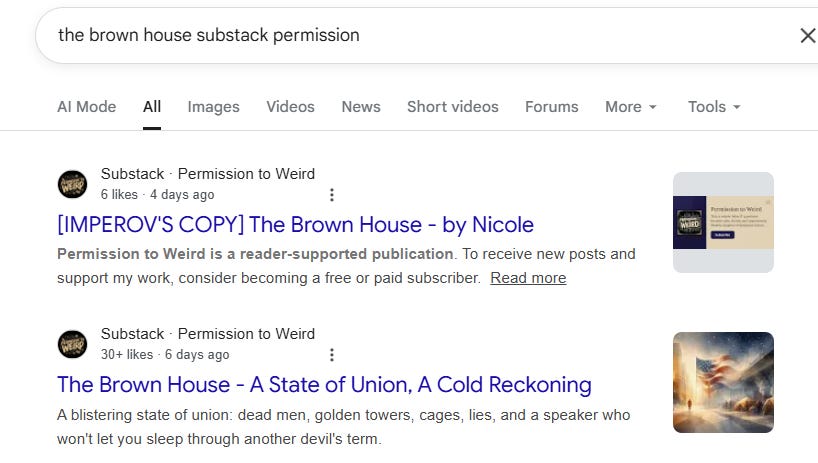
Your social preview title (what Twitter/Facebook/LinkedIn users see)
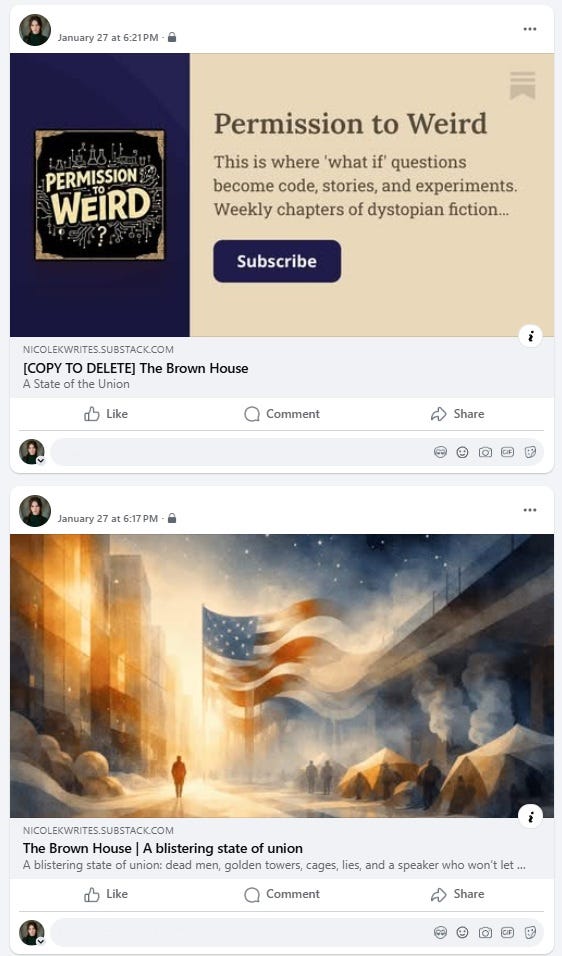

Why three? Because each audience needs different information to decide whether to click.
SEO Title
Google’s algorithm is looking for relevance. It wants to know: “What is this post about, and does it match what someone searched for?”
Your SEO title should be:
Clear and descriptive
Keyword-rich (what terms would someone type into Google to find this?)
Factual, not cute
Example:
Post title: “The Email That Changed Everything” - max 60 characters
SEO title: “How to Write Cold Emails That Get Responses - Email Template Guide” - max 160 characters
The SEO title tells Google exactly what’s inside. The post title creates narrative intrigue. I don’t bother much to compose this, just ask any LLM to create one giving the constraints, they know what SEO title is supposed to do and can get the best out of your entire post (make sure to give it the real title too, else it becomes creative).
The SEO Description: Your 160-Character Sales Pitch
Under Settings > SEO Options > SEO Description, you get 50-160 characters to convince someone in Google’s search results that your post is worth clicking.
This is not the place for mystery. This is the place for:
Clear value proposition
Specific details
Keywords that match search intent
Find the SEO settings in the lower right side, while Editing your post in desktop version:
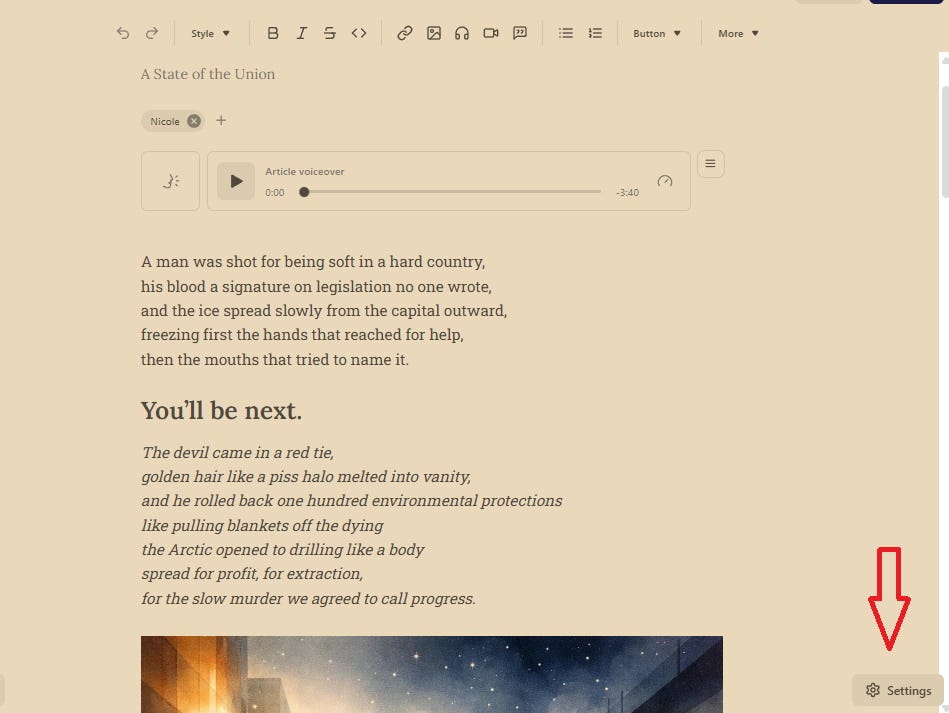
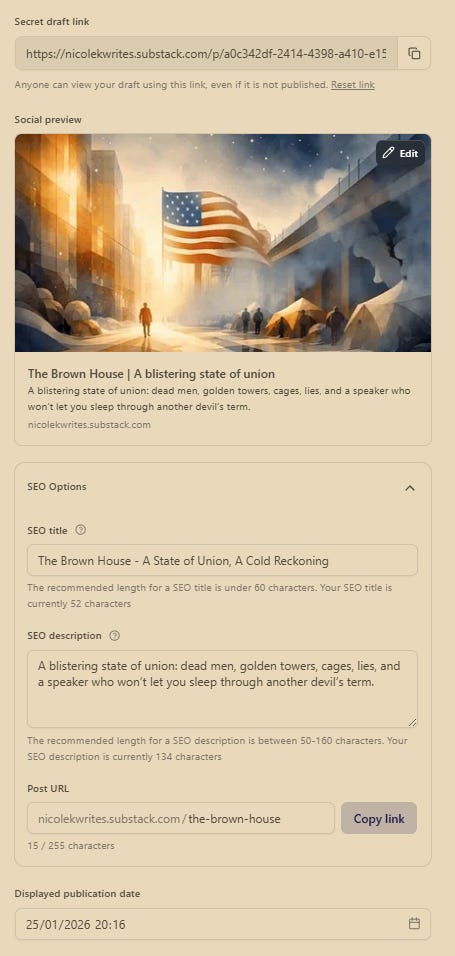
Remember to save after setting SEO title and Description.
Social Preview Title
(Settings > Social Preview > Custom Title)
Social media is a different beast. People aren’t searching, they’re scrolling. You need to stop the scroll. That means:
Curiosity hooks
Emotional triggers
Questions that beg answers
Slightly provocative statements (but not garbage clickbait)
Example:
Post title: “The Email That Changed Everything” - max 60 characters
Social preview title: “I sent one email. It got 47 replies in 24 hours. Here’s what I wrote.” - max 160 characters
See the difference? The social version creates FOMO and specificity (”47 replies”) while the post title maintains literary dignity.
Pro tip: Your main post title can be whatever you want, poetic, enigmatic, clever. Just make sure your SEO title does the heavy lifting for Google and your social preview title does it for humans scrolling Facebook at 2am.
Unlike the SEO description (which serves Google’s algorithm), the social preview description serves humans mid-scroll. Keep it:
Specific and concrete - “Includes 3 email templates and response rate data from 200+ sends”
Benefit-focused - What will the reader gain or learn?
Casual but not sloppy - Social media is informal; match that energy
This field is optional. If you leave it blank, Substack will pull the first ~160 characters of your post text, which may or may not make sense out of context.
Adding a Custom Social Preview Image
(Without Including It in Your Post)
Sometimes you want a specific image or GIF to appear when your post is shared on social media, but you don’t want that image cluttering your actual post content. Maybe it’s the flashy animated GIF that works great for catching attention on the feed but feels too aggressive in your carefully-paced essay. Or maybe you’ve created a custom graphic specifically designed for social sharing that doesn’t fit the flow of your written piece.
Substack lets you do this.
Here’s how:
While in the Social Preview, click on the image already displayed (most likely your first image in the post), click again and you will be prompted to select a file from your computer.
Upload your .gif or different image file here. Give it a minute to upload and crunch, and it should eventually appear as replacing the static image. You will get some error or no change if the file is too big, I’m not sure what’s the limit though. Files up to 17 MB have worked well for me, files double that size have errored. If you generate the seed image and video at the size I recommended, it will upload fine.
This image will now appear as the social preview thumbnail everywhere the post is shared. On Substack, it will also appear as animated. External platforms don’t auto-play GIFs from unfamiliar domains for bandwidth and user experience reasons. They treat them as regular images in link previews.
My one prompt for all the content above
If I would have to save a single prompt, I’d start with this. Just feed it to your LLM and also give your post text content. As with any LLM, results are never guaranteed but it’s a start:
You are an expert content strategist specializing in Substack optimization. When given a story or article, you will generate:
SEO Title (exactly 55-60 characters including spaces)
Must be keyword-rich for search discoverability
Should intrigue while being descriptive
Count carefully to maximize the 60-char limit
SEO Description (exactly 155-160 characters including spaces)
Compelling hook that makes readers click
Include key themes/keywords naturally
End with emotional or intellectual payoff promise
Count carefully to maximize the 160-char limit
Social Preview Title (exactly 55-60 characters including spaces)
Builds on SEO title theme but optimized for social sharing
More provocative/emotional than SEO version
Makes people want to share, not just click
Count carefully to maximize the 60-char limit
Social Preview Description (exactly 155-160 characters including spaces)
More story-driven than SEO description
Creates FOMO or emotional urgency
Teases the emotional/intellectual journey
Should make readers say “I need to read this NOW”
Count carefully to maximize the 160-char limit
Static Image Prompt (for main header/thumbnail)
Visually striking and thematically relevant
Optimized for social media sharing (eye-catching)
Incorporates key visual metaphors from the story
Suitable for both thumbnail and full header display
Animation Prompt (to bring the static image to life)
Describes specific movements, timing, and effects
Emphasizes what should animate and HOW
Specifies direction of movement clearly
Notes loop-ability and duration
Highlights any elements that should NOT move
Critical Rules:
Titles MUST approach 60 characters (55-60 range)
Descriptions MUST approach 160 characters (155-160 range)
Social versions should be more provocative than SEO versions
All content must be compelling for the specific platform (Substack literary/intellectual audience)
Character counts include spaces and punctuation
Never undersell the available character space
Output Format:
SEO TITLE (X chars): [title]
SEO DESCRIPTION (X chars): [description]
SOCIAL PREVIEW TITLE (X chars): [title]
SOCIAL PREVIEW DESCRIPTION (X chars): [description]
IMAGE PROMPT:
[detailed static image description]
ANIMATION PROMPT:
[detailed animation instructions with timing, movement, and technical specs]
When given text, analyze its core themes, emotional hooks, and key visual imagery, then generate all elements optimized for maximum Substack engagement and discoverability.
The Boring Truth
None of this is difficult. It’s just administrative work that doesn’t feel like “real writing.” But if you want your Substack to reach beyond your existing subscribers, if you want strangers to discover your work through search or social shares, you have to do this stuff.
Think of it like putting up signposts. Your writing is the destination. These technical tweaks are the highway signs that help people actually find the destination.
Write great posts. Then spend 20 minutes making sure people can actually discover them.
That’s it. That’s the whole thing. Do ping me if you have a stubborn thing that just won’t come out as needed.
For more on technical Substack optimization, I can’t recommend enough these guides:

Get your Substack on Google Part 1: Create backlinks, Part 2: Setup Search Console, Part 3: Stand Out, and The Essential Guide to Substack SEO.
That’s all from me, your turn to ask what if.
Thank you for reading my work! Hi, I’m Nicole. You can read here a bit about myself! I write poems when I’m angry, fiction when I’m hopeful, and dystopias when I’m paying attention.
If you’d like to support my writing, or my slightly unhinged hobby of feeding deer in the backyard, please consider subscribing, sharing, or becoming a paid subscriber.
And if a subscription isn’t for you, you can always use my Buy Me a Coffee link to buy the deer some fodder instead.

I am a published writer. Curriculum of Feelings is a haunting, six-part journey that spans centuries and species, a visceral exploration of the “Problem of Evil.”
Through a collection of short stories, you follow five distinct vessels: a poetess silenced by her world, a slave who finds freedom in language, a tree that witnesses history’s worst acts, a whale carrying a dying song, and a boy tracking a collapsing future. Each life is a lesson in humility, humanity, and pain.
You can buy my book on Amazon.

This is so incredibly helpful, thank you! 🩷 I started Substack months ago as just a space to put my work, but now I have goals and am trying to build community. I really appt your insights!
This is so informative and helpful, Nicole. It is administrative but it’s necessary. I’m still learning but I learned a whole bunch today! Thank you for putting this together for us.